Full diff viewer
Tap the git status button in the file tree header to open the Git Status panel. It shows every changed file in the project, grouped by status. Select any file to see a full unified diff — with line numbers, hunk headers, and color-coded additions and deletions.
The same red-for-removed, green-for-added coloring shows up anywhere a diff appears in Remote IDE — including when the AI agent edits a file for you, so you can confirm exactly what changed before it goes further.
- Added lines highlighted in green
- Deleted lines highlighted in red
- Context lines in neutral gray
- Old and new line numbers shown side by side
- Hunk headers for navigating large diffs
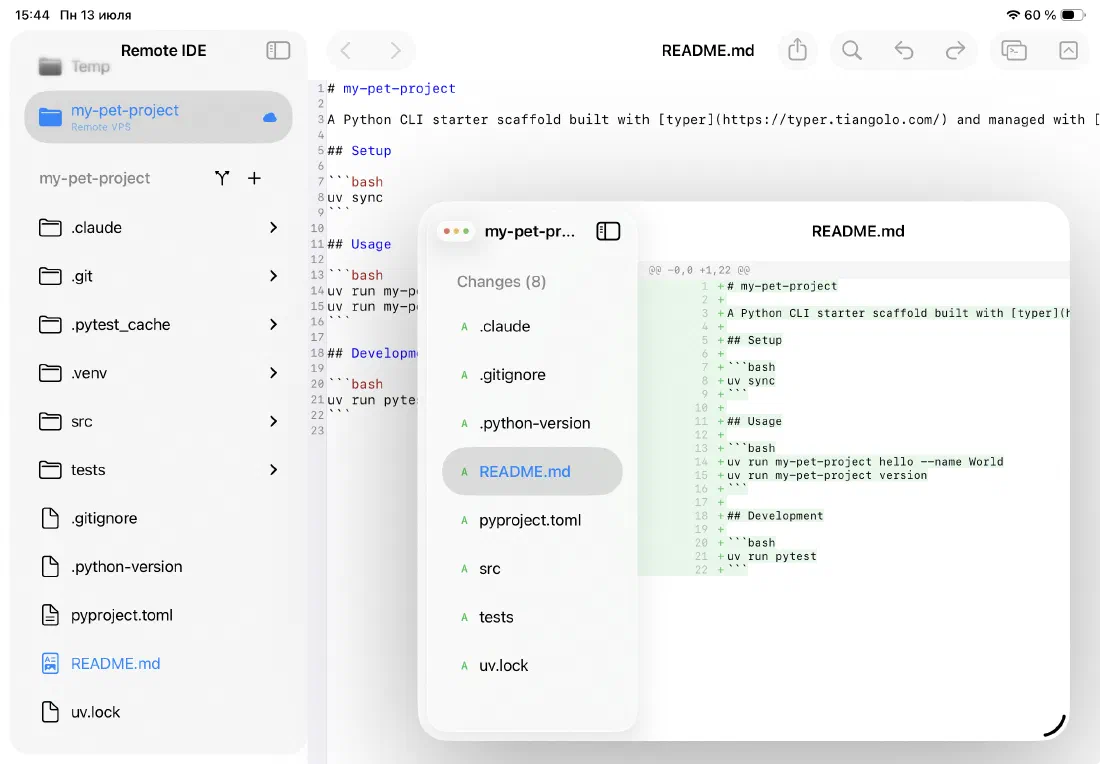
Git status in the file tree
Modified files are highlighted directly in the project tree — no separate git panel to open, no command to run. As soon as you save a file, the indicator updates to reflect the current git status of each item.
Each file is labeled with a color-coded status letter: A for added, M for modified, D for deleted, R for renamed. You can see the state of your entire working tree at a glance without running a single command.
- Added files: green
- Modified files: orange
- Deleted files: red
- Renamed files: blue
- Conflicted files: red
Works on the files you already have
Git status is read from the project files in your iCloud Drive — the same files the editor works with. There's nothing to configure and no separate git tool to install on your iPad. As long as the project directory contains a .git folder, status tracking works automatically.
If the project isn't a git repository, the Git Status panel tells you clearly — no confusing empty states.
- Detects
.gitfolder automatically - Shows "Not a Git Repository" when
.gitis absent - Shows "Working tree clean" when there are no uncommitted changes
- File count displayed in the section header: Changes (5)
Ready to code on iPad?
Download Remote IDE and connect to your server in under a minute.